Introducing Canvas
A visual workspace for connecting reference material, AI responses, and successive drafts.
Yorikai now includes Canvas, a visual workspace for connecting source material and AI responses. Text, files, and generated results can be arranged as nodes, making it easier to see which materials each response uses and to develop a project across multiple steps.
Create a canvas with New canvas in the sidebar. For a product launch, for example, a text node can hold the brief and a file node can hold a reference image. Connect both to an AI reply node, choose a model, and generate a strategy based on those materials.
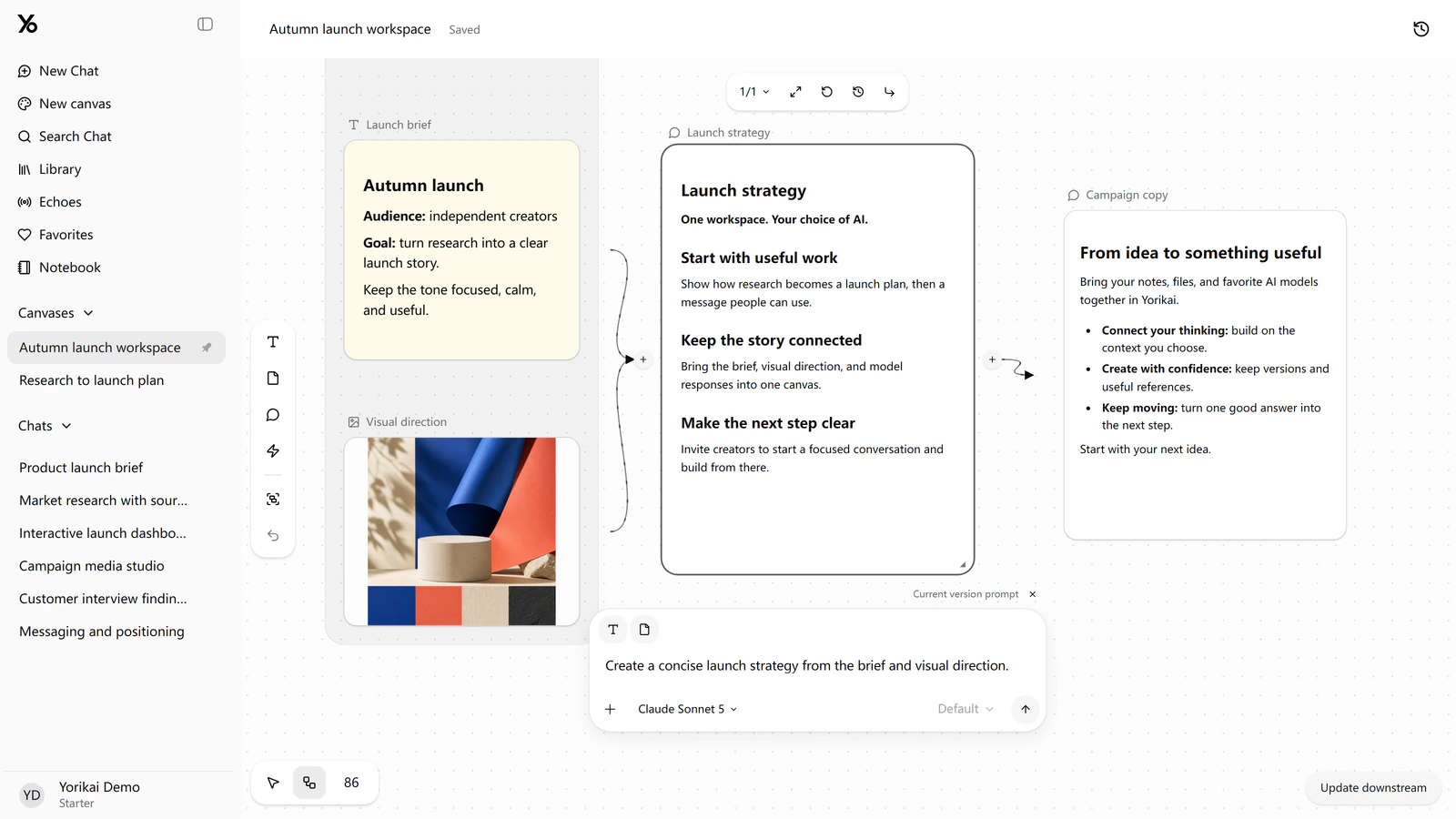
A second reply node can then use the strategy to draft campaign copy. Each reply uses the nodes connected directly to it. To include the original brief in the writing step, connect that brief to the second reply as well.
Successful generations are saved in the reply node's history, so earlier versions remain available for review and reuse. Editing the brief does not automatically regenerate connected replies; choose when to generate again or update downstream work.
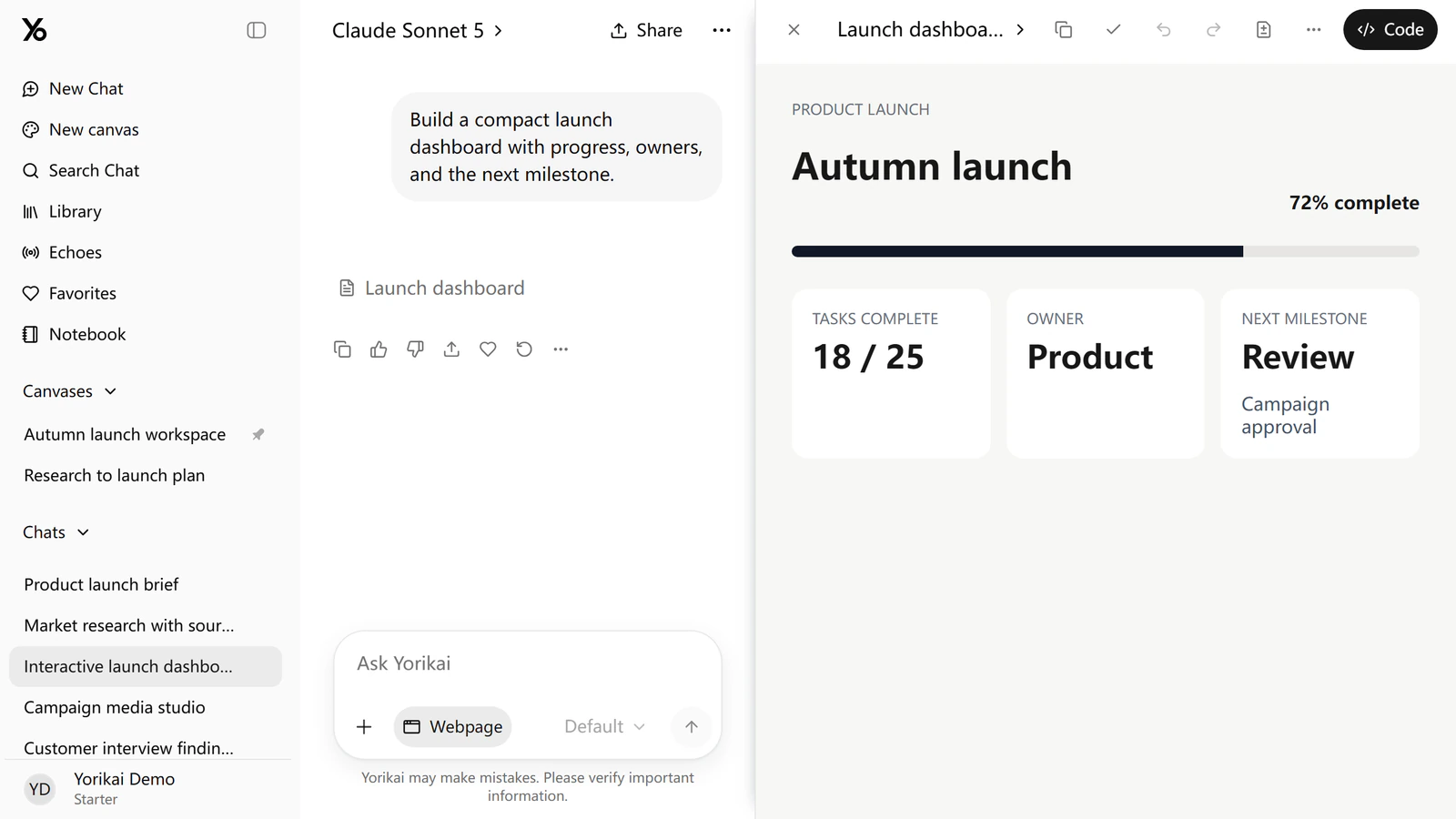
The HTML creation tool in chat has also been renamed Webpage. Select it in the composer to create a page or interactive demo from a prompt. The result opens in a preview beside the conversation, where it can be reviewed and revised.
Canvas is available from the Yorikai sidebar. For repeated sequences of tasks, Canvas workflows provide a way to save and run the steps.