Meet Canvas
Keep your brief, reference files, and drafts in view as a project takes shape.
Say you're planning a product launch. You have a brief, a reference image, and a few ideas for the announcement. As the conversation grows, you find yourself scrolling back to check the brief or recover a draft you liked.
Canvas is a new workspace in Yorikai where you can lay those pieces out together. Open New canvas from the sidebar, put the brief in a text node, and add your reference image as a file node. Then add an AI reply node for the launch strategy, choose a model, and connect it to both.
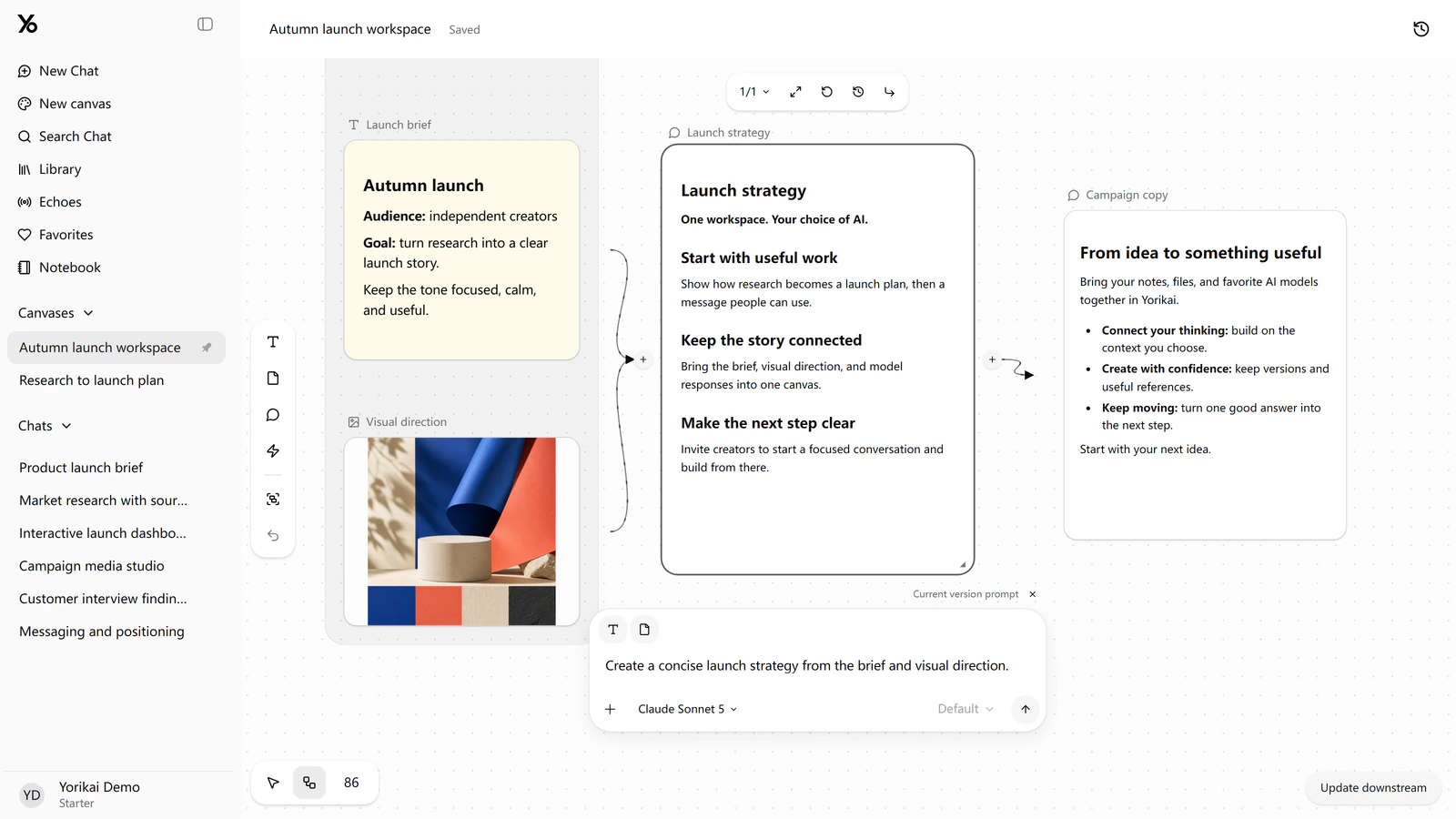
The strategy reply can use the brief and image you connected to it. When you're ready for copy, add a second reply and connect it to the strategy. If that writing step also needs the original brief, connect the brief to it as well. Each reply uses its direct connections, so you can see what it is working from.
From there, you might try a different angle for the announcement or ask another model for a version. Successful generations stay in the reply's history. If the earlier draft was better, you can return to it without losing the prompt you're still working on.
You can also revise the brief as the plan changes. Your other nodes stay as they are until you choose to generate again or update downstream work. That leaves you time to finish an edit before asking the AI to use it.
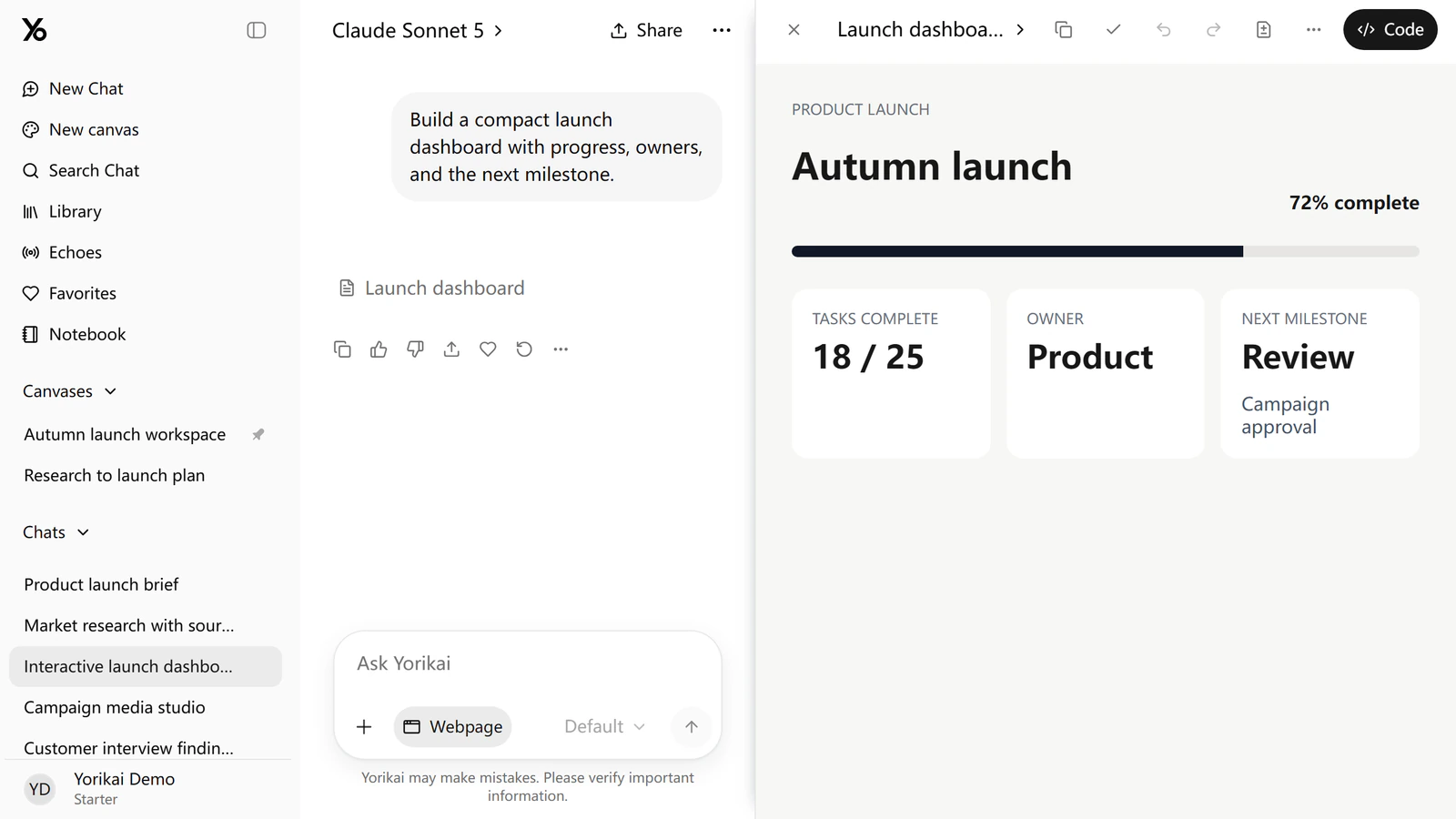
Alongside Canvas, there's a name change you may notice in chat: the HTML creation tool is now called Webpage. When your launch needs a page or an interactive demo, choose Webpage in the composer and describe what you want to build. The result opens in a preview beside the conversation, where you can keep working on it.
You can open Yorikai and start with just a brief and one reply. If you later find yourself repeating the same steps between nodes, you can turn that handoff into a Canvas workflow.